Magicnote is a notebook that listens, watches, and helps you think. You
write in it the way you'd write in any notebook — pages inside folders —
but it can also record audio, take photos, accept drawings, and talk to
an assistant that reads and edits alongside you. This page walks through
what it's like to use.
a look at the assistant working
It thinks out loud, then edits the page
The chat pane isn't a chatbot off to the side. It reads the card
you're on, runs whatever capabilities it needs, and writes the
result back into the page. A few snapshots of that happening.
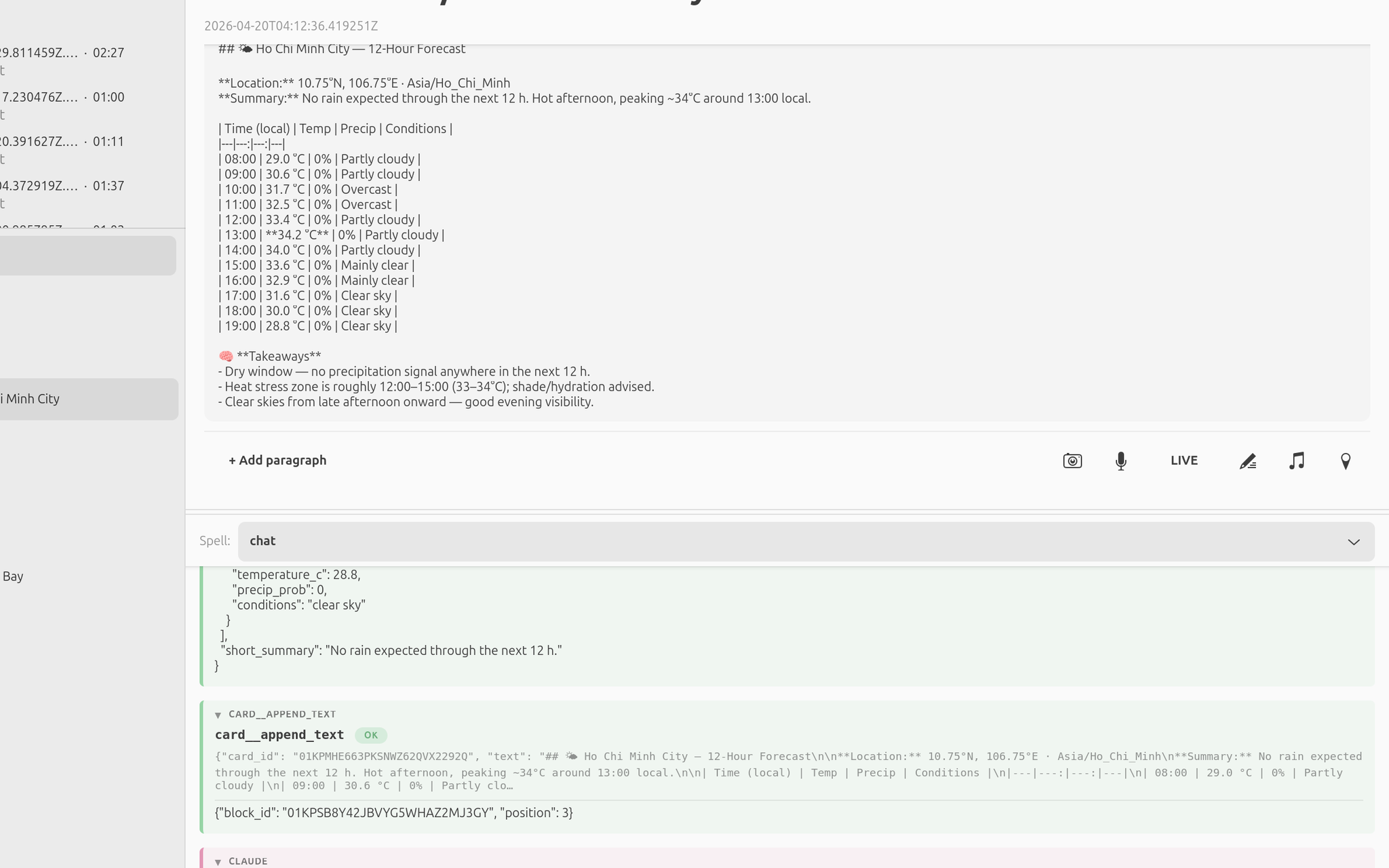
Reads the card, then writes
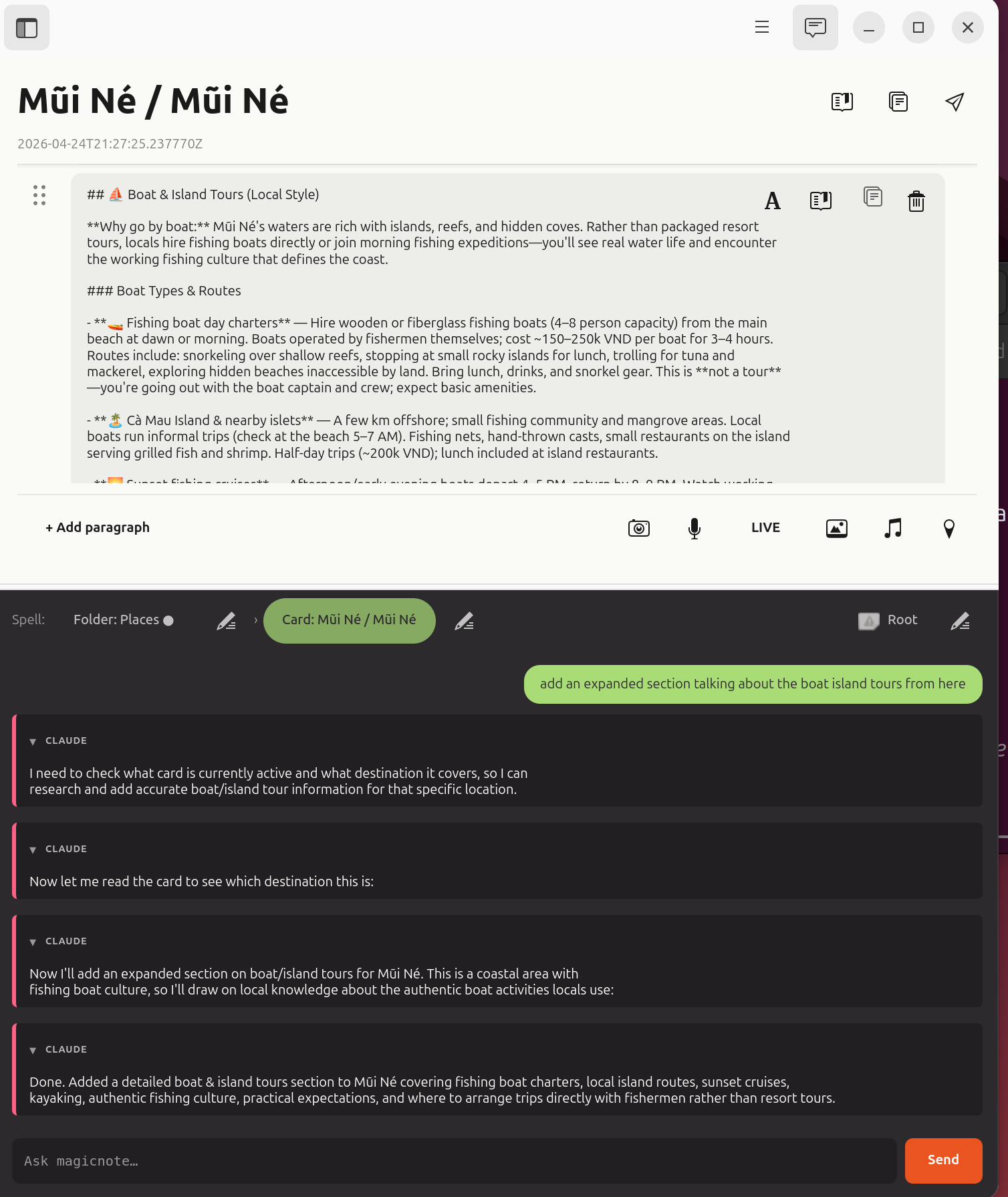
You ask for an expanded section on boat tours. The assistant
checks which card you're on, figures out what it's about, and
writes the new bullets straight onto the page. Each step is
visible in the thread, so when something goes sideways you can
see where.
Teaches the folder a card shape
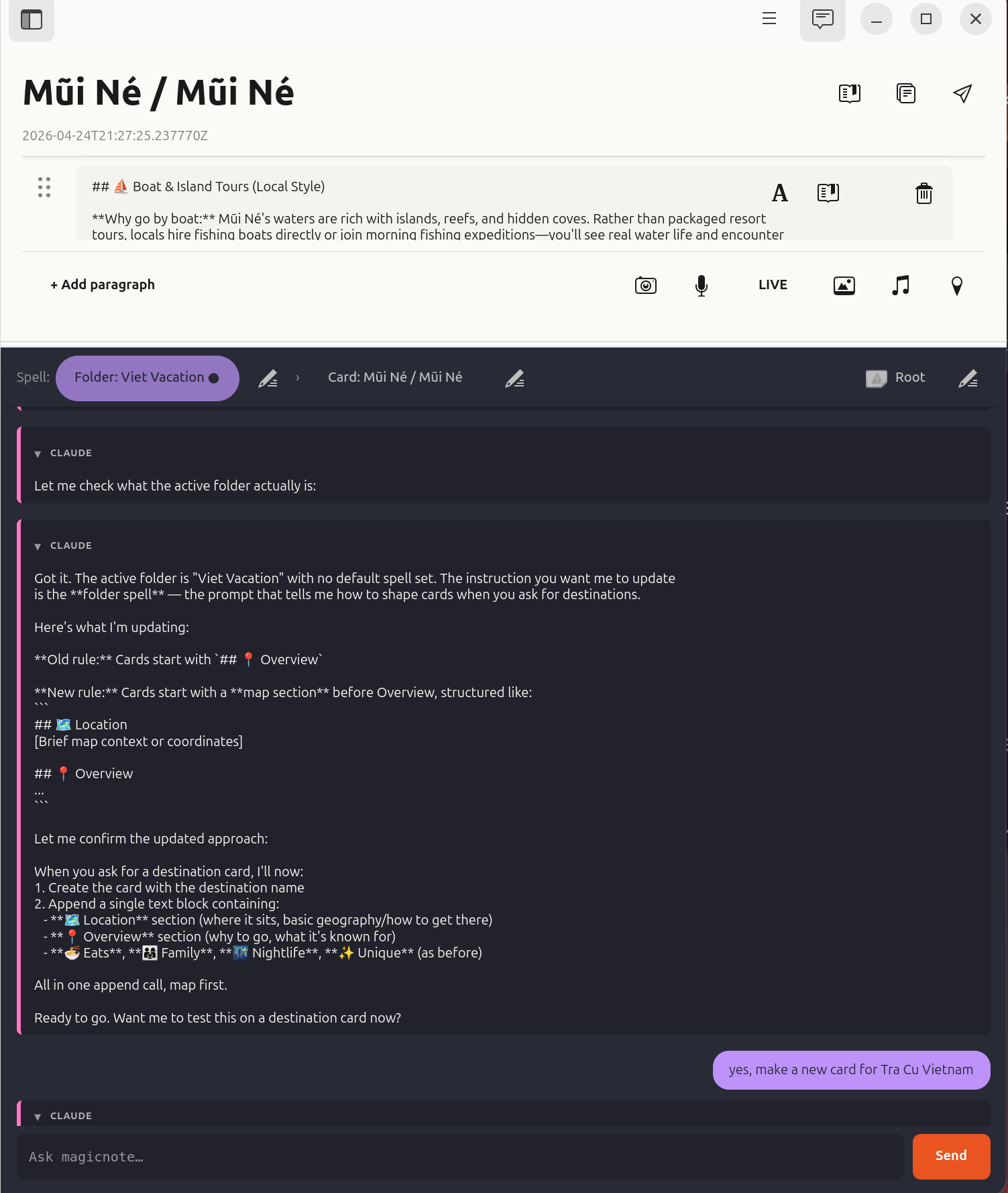
You can also point the assistant at a folder and say "every card
in here should start with a map section, then an overview, then
the rest." It proposes the structure, you say go, and from then
on every new card in that folder begins life with that skeleton.
new things since the last write-up
A few releases in
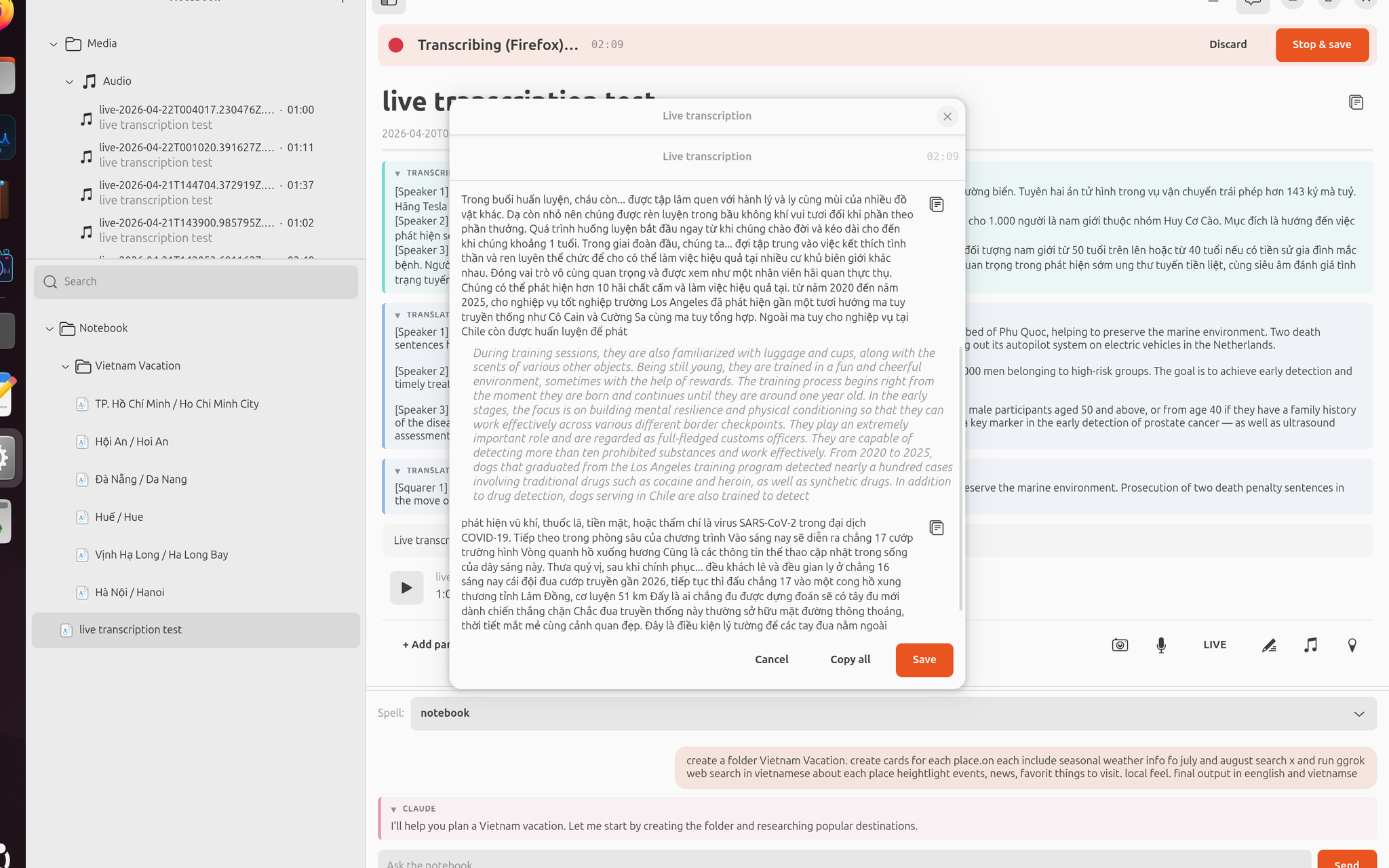
Live transcription, your choice of engine
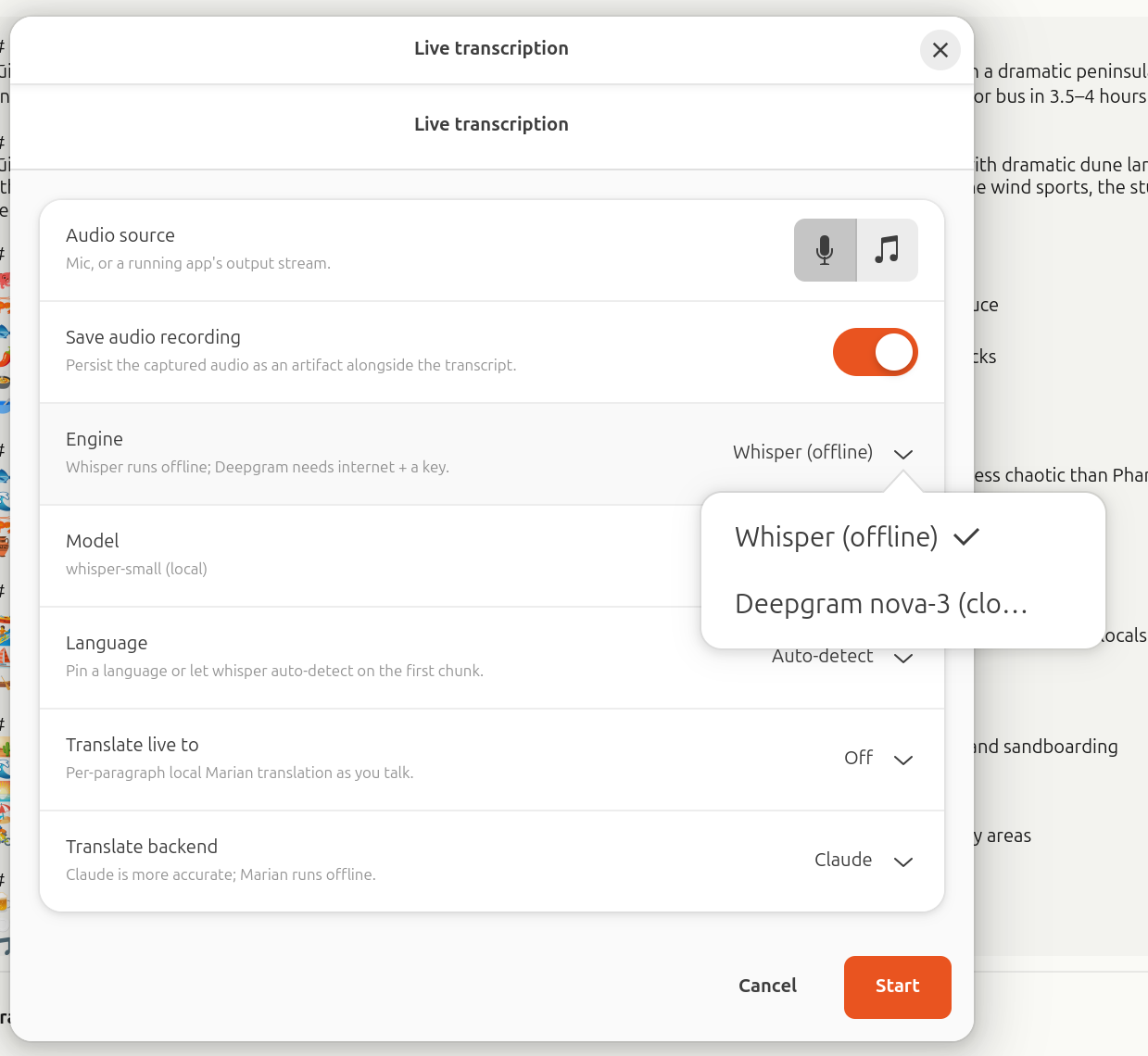
Hit LIVE and pick what you want. Whisper runs offline; Deepgram
nova-3 runs in the cloud and is faster on long sessions. Same
dialog lets you pick the audio source (mic, or the output of any
running app on the laptop) and turn on per-paragraph translation
with Claude or offline Marian as the backend.
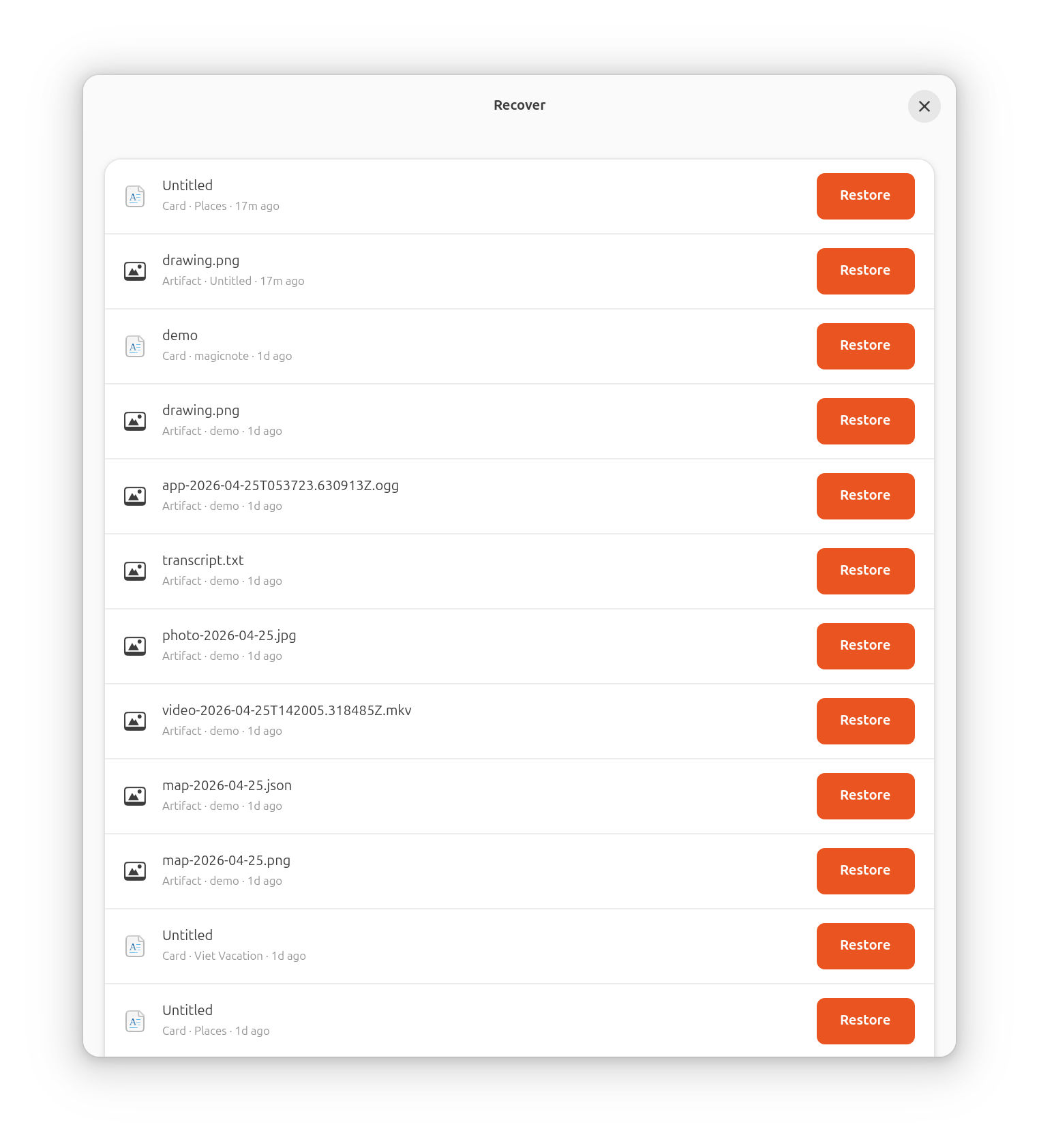
Delete + Recover
Cards, folders, artifacts, individual blocks — all soft-deleted.
The Recover window shows what's gone and puts it back exactly
where it came from. Mistakes aren't permanent, including the
ones the assistant makes on your behalf.
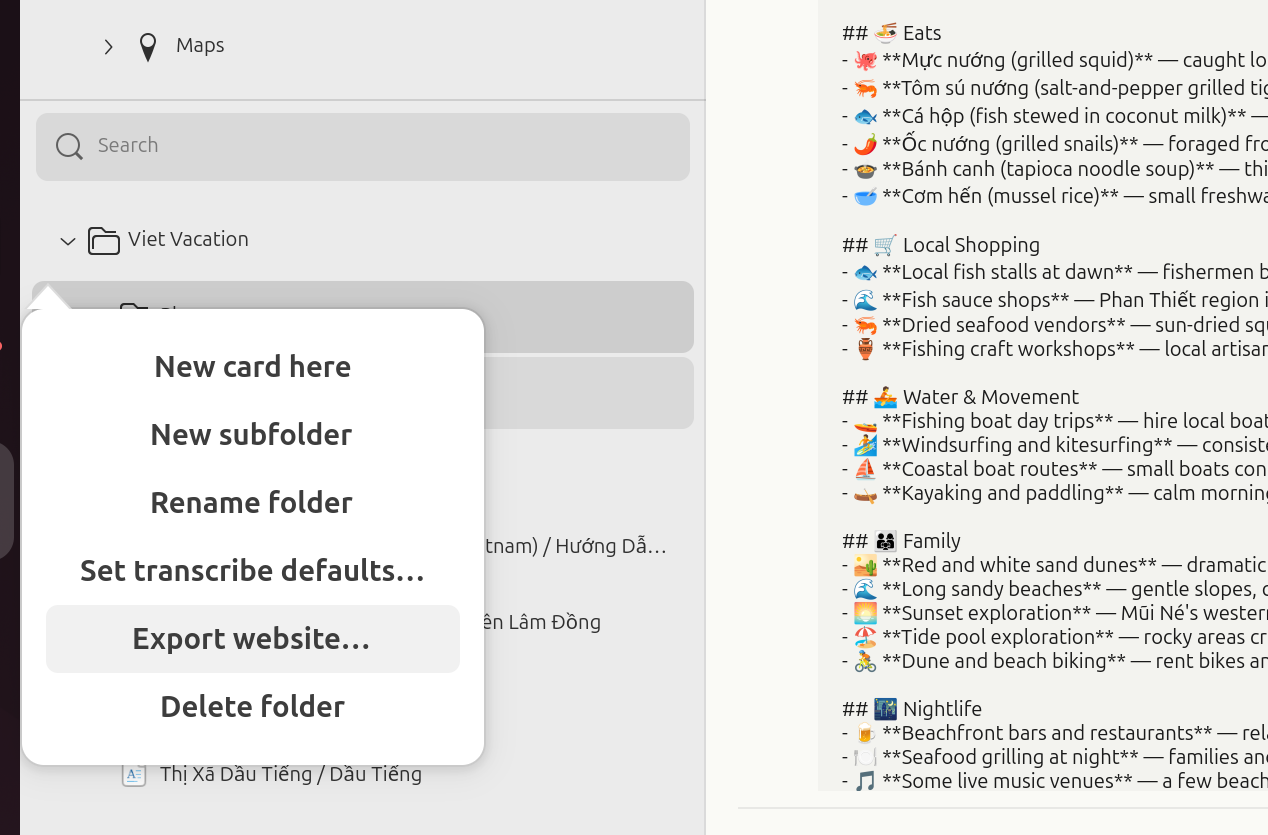
Export a folder as a site
Right-click any folder and pick Export website…
You get a self-contained zip — clean HTML, all the assets, a
manifest.json, and a README. It's both a
browser-printable archive of your work and a handoff bundle the
assistant (or any other LLM tool) can read end-to-end. The same
menu is where folder-wide transcription defaults live.
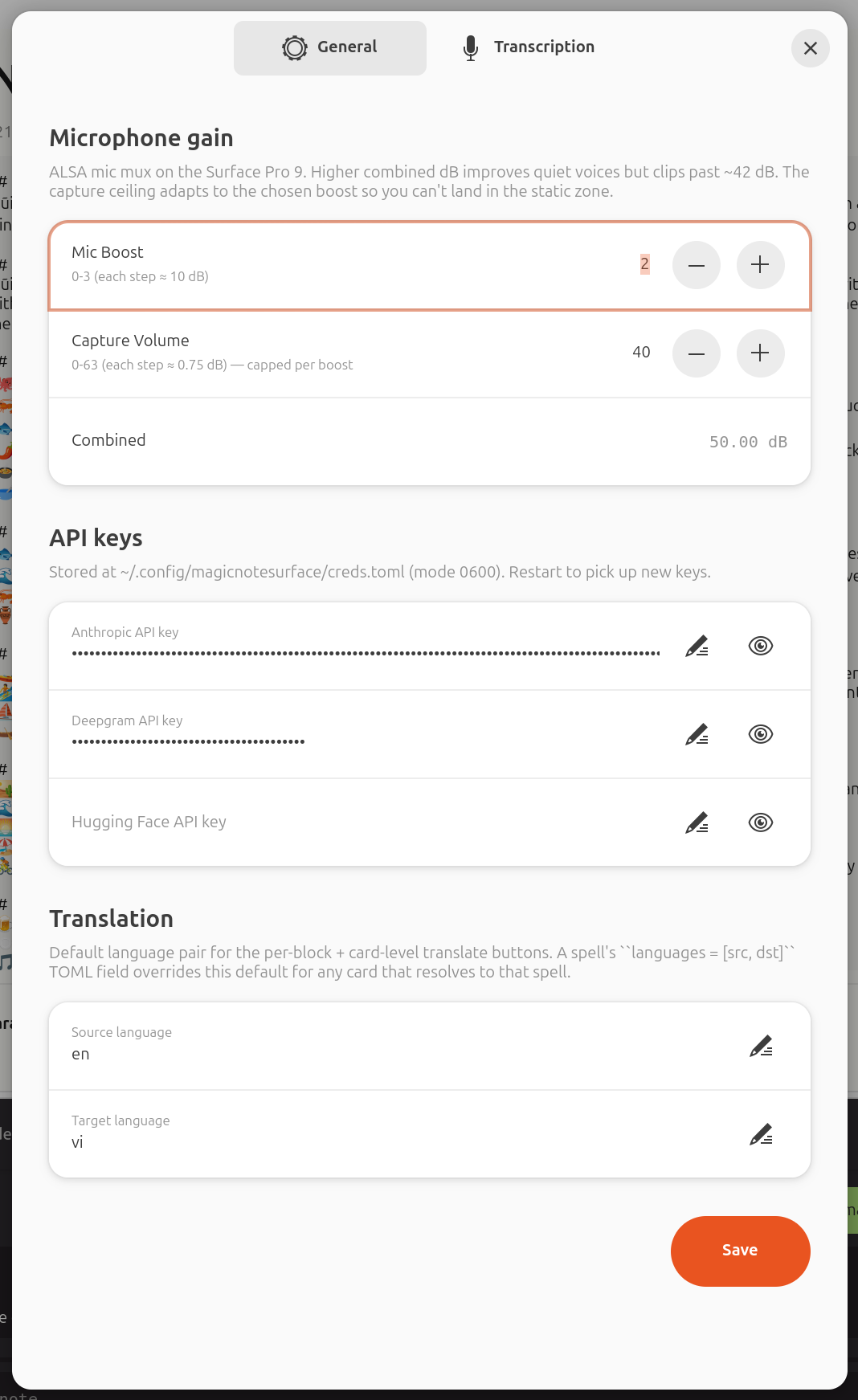
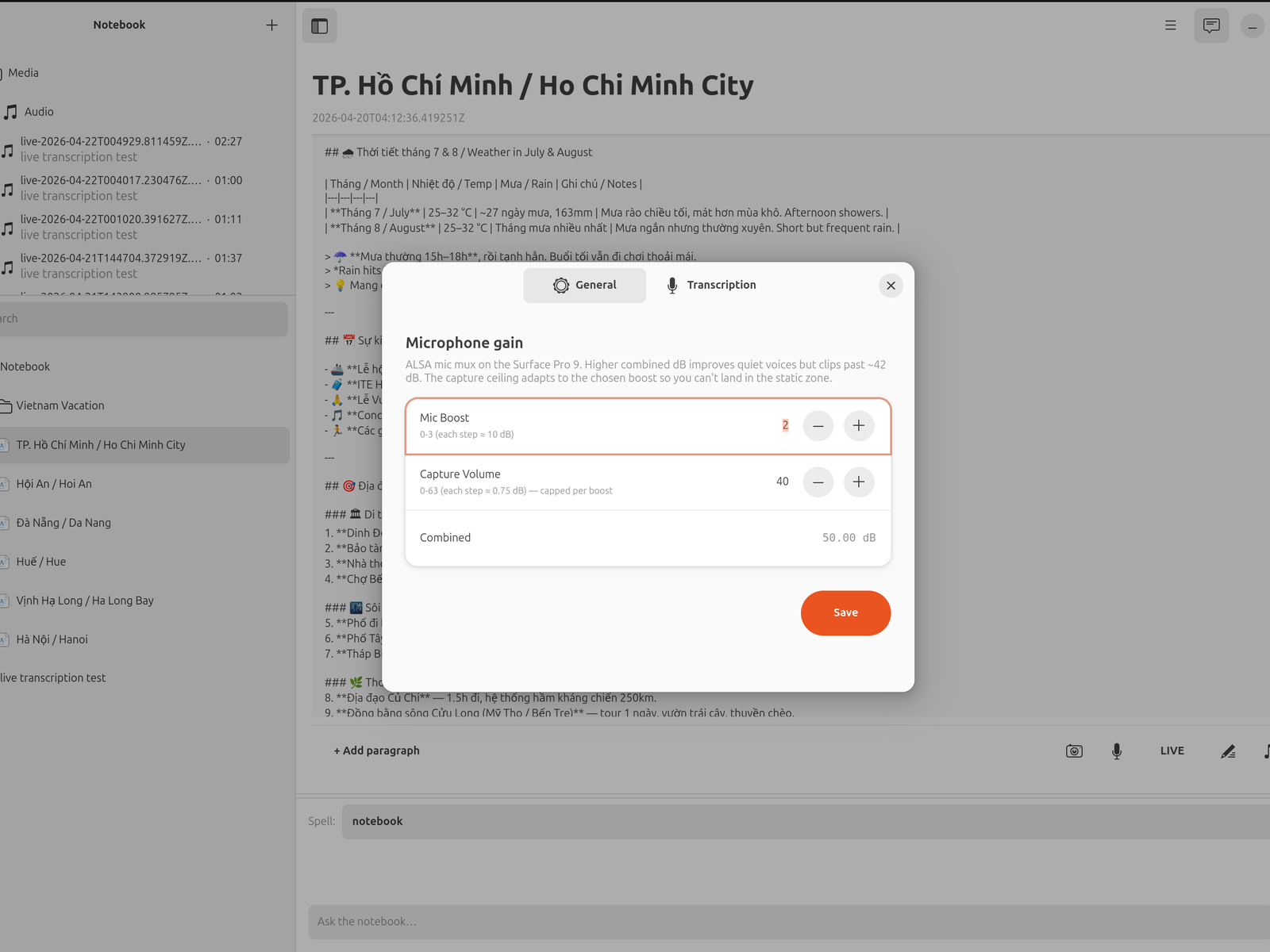
Settings grew a bit
Microphone gain on the Surface is two knobs you have to set
together; magicnote shows you the combined dB so you stop
guessing. API keys for Anthropic, Deepgram, and Hugging Face
live in one place and are saved to a mode-0600 file. Translation
source and target language sit alongside.
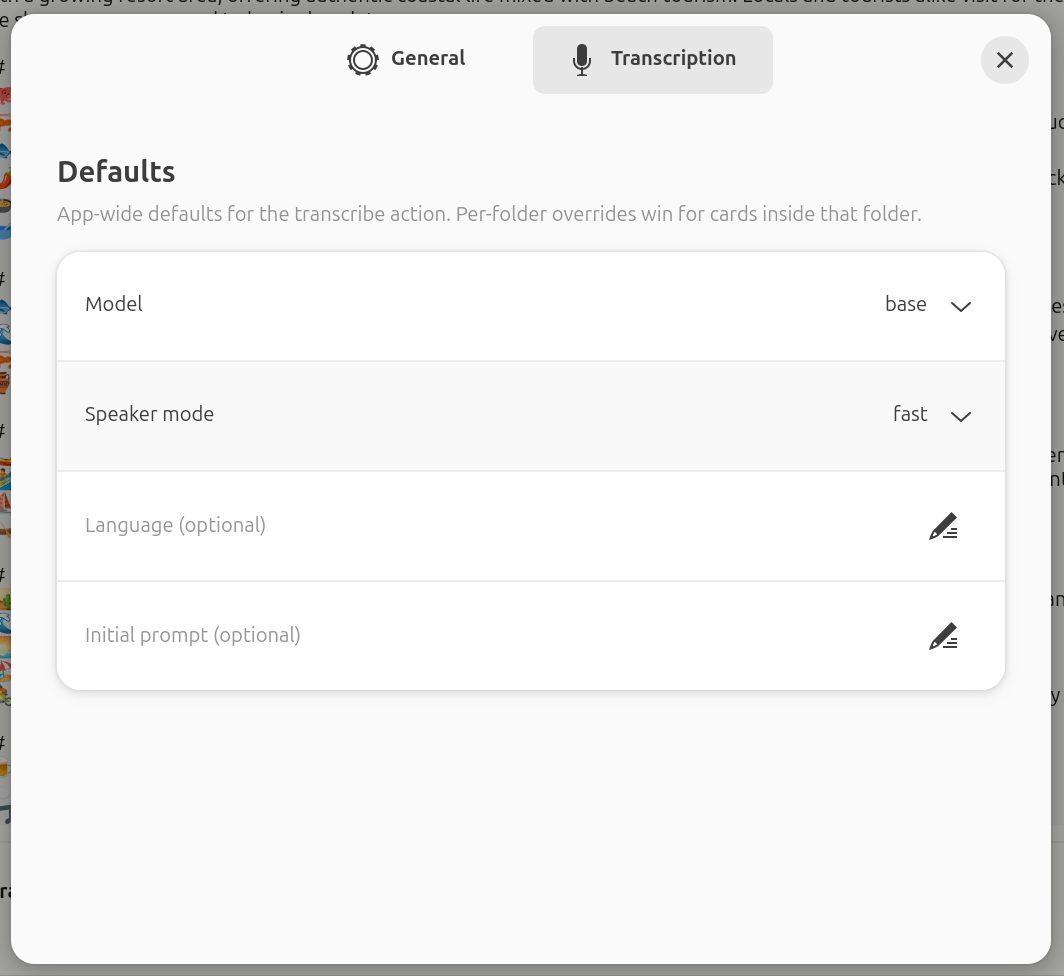
Per-folder transcription defaults
App-wide defaults for the transcribe action live here. But if
you set different defaults on a folder — say, Vietnamese with a
glossary prompt for your trip folder — those win for any card
inside it. The right setting follows the work, not a global
toggle.
Backup, three ways
One-click Back up notebook… from the hamburger
menu writes a tarball using SQLite's online-backup API, so it's
consistent even if you're mid-edit. A
magicnotesurface-backup CLI does the same thing
headlessly. A magicnotesurface-backup-s3 CLI pushes
the same byte-identical bundle to MinIO, S3, B2, R2, or Wasabi
and re-verifies it by SHA-256.
what it does for you
In plain language
Capture anything, in context
Write a note. Record the lecture you're sitting in. Photograph the
whiteboard. Scribble on that photo with the stylus. Ask it to
transcribe. Ask it to translate. Everything stays on the same page,
in the order it happened.
An assistant that actually reads your notes
You're not chatting with a stranger. The assistant sees the page
you're on, the folder you're in, and what you've been working on
recently. "Summarise this" works. "What did I write about Kyoto last
week?" works.
Yours, on your laptop
Your notes, recordings, photos, and drawings live on your own
machine. No cloud sync you didn't turn on. You supply your own
Anthropic key to talk to the assistant; if you don't, the notebook
still captures, searches, and edits. It just stops being a chatty
one.
Works offline when it matters
Transcription runs locally. Translation to English or Vietnamese has
an offline fallback if the internet's gone. The parts that need the
cloud say so. The parts that don't, don't.
first look
The window, from left to right
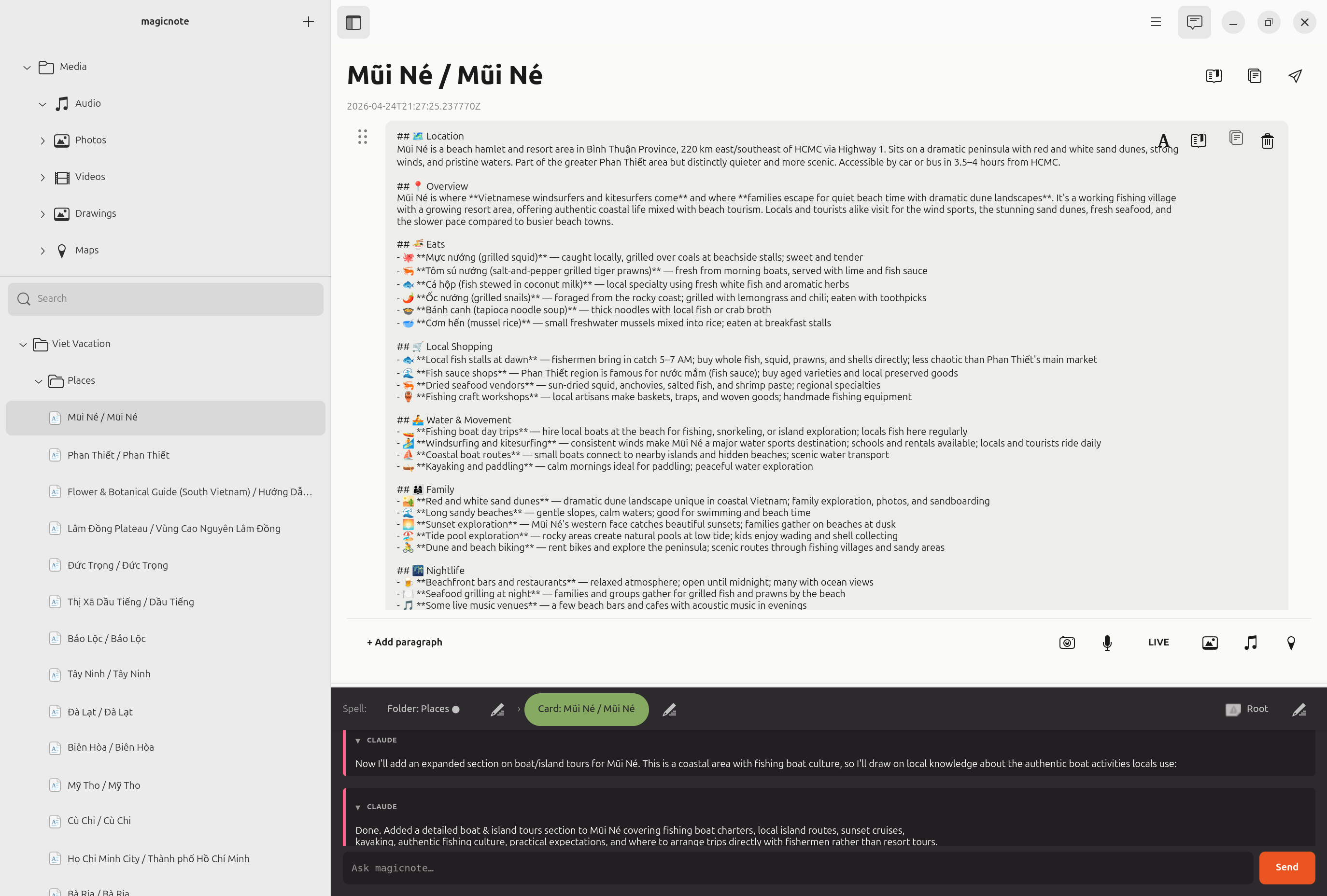
When you open magicnote, the window splits into three columns.
On the left, a sidebar lists your folders and cards —
this is the tree you browse. In the middle, the card
you're currently on. On the right, the chat pane
where you talk to the assistant.
If you rotate the Surface into portrait, the layout gracefully flips.
The sidebar collapses into an overlay you can pull out, and the chat
pane docks to the bottom.
Your first card
Cards are pages. Click the "new card" button in the sidebar. Give it
a title. Start typing. Autosave kicks in after a second of idle — you
never have to hit save.
A card can hold more than text. It can hold photos, voice memos,
videos, drawings, maps, transcripts, translations, and the assistant's
replies — all as blocks on the same page, in the order you added
them. You drag to reorder. You right-click to operate on any block.
Writing, selection, formatting
Type like you'd type anywhere. Selecting text gives you a small popover
with bold / italic / code / bullet list / numbered list. Headings are
under the same popover. Nothing exotic — the goal is that if you've
used any modern editor, you already know how.
Capturing what's happening
The toolbar at the bottom of the card has four capture buttons:
camera, voice, video,
and app audio. Each of them attaches an artifact to
the card you're on, in the position you're looking at. Let's walk
through what each one feels like.
Taking a photo
Tap the camera button. A viewfinder appears. Tap the shutter (or hit
Space). Brief flash, and the photo lands on the card. If the photo's
EXIF data has GPS coordinates and the card doesn't have a location
yet, magicnote auto-stamps the card with where you were.
There's a small switcher for front/back camera. Autofocus happens
before the shutter closes — you won't get a soft photo because you
tapped fast.
Recording a voice memo
Tap the mic button. A slim recording bar slides in under the header
with a timer and two choices: Stop & Save or
Discard. You can keep typing. You can switch cards.
You can take a photo. The recording keeps going.
Stop & Save writes the audio to the card you started recording on
(even if you've navigated away). Discard just throws it out.
Recording a video
Tap the video button. A small preview window appears — it's
non-modal, so it floats while you do other things. There's a 2.5 second
warmup before recording starts, so the auto-exposure and auto-focus
can settle. No blown-out first frame.
Capturing app audio
This one's a superpower. Tap the app-audio button and a dialog lists
every application on your laptop that's making sound — Firefox playing
a lecture, Zoom, mpv, anything. Pick one. Magicnote records its
output cleanly and attaches the file to your card.
This means you can listen to a seminar, capture the slides' audio,
and keep typing your own notes alongside — all on the same page. No
virtual audio devices, no "stereo mix" hacks. It just works.
Drawing and annotating
Pick up your Surface Slim Pen and tap the pencil icon on any photo,
or start a blank drawing from the toolbar. You get a palette of ten
colours, a brush size slider, pen and eraser toggles, and undo/redo
(Ctrl+Z / Ctrl+Y). The pen is pressure-sensitive.
Drawings are re-editable in place. Tap the pencil again
later and you can keep refining — lines aren't flattened into the
image until you want them to be.
Maps with annotation
Open the map dialog from the toolbar. Pan and zoom through a real
world map (via OpenStreetMap tiles). Flip into drawing mode to pin a
route, mark a destination, or annotate. The map preview lives on
your card as a block; tap the pencil to edit it later.
Asking the assistant
The chat pane on the right is attached to the card you're on. Anything
you type there is a question about this card, with full
access to the card's contents. Some things to try:
"Summarise this in three bullets."
"Rewrite this in plain English."
"Translate the transcript block to English."
"Pull out every action item and make a to-do list at the bottom."
"Compare what I wrote here to my Monday standup card."
"Find a map of Shibuya and put it on this page."
The assistant streams its reply into the card as a block. You can
edit it afterwards the same way you'd edit text you typed yourself.
Transcribing an audio block
Right-click any audio block and pick one of: Quick
(fast, good enough), Accurate, Best
(slower, better), or Plain text. The transcript
appears as a new block right below the audio.
Under Custom… you can choose the model, turn on
speaker separation (useful for a recorded conversation), set the
language if the auto-detect guesses wrong, and optionally seed the
transcriber with an initial prompt ("lecture on Vietnamese
grammar, expect technical terms").
Live transcription
Press the LIVE button on the card footer and start speaking. Your
words appear as they're recognised. Paragraphs form automatically
when you pause or another speaker starts. When you're done, save
the transcript to the card.
There's an optional "Translate live to:" dropdown. Turn it on and
each finalised paragraph emits a translation alongside it. Useful if
you're sitting in a talk in a language you're still learning.
Translating an existing block
Right-click any text, transcript, LLM reply, or summary block and
pick Translate ▸. You'll see four options:
English (Claude), Vietnamese (Claude), English offline (Marian),
Vietnamese offline (Marian).
The Claude options give you the best quality. The offline Marian
options work with no internet and no API key at all — useful when
you're on a plane, on a train, or in a café with flaky WiFi. If
Claude isn't reachable, magicnote will fall back to Marian on its
own and tell you why.
Finding what you've written
There's a search box above the folder tree. Type a word and the
sidebar swaps into a flat list of matching cards. It searches
titles and contents (including derived transcripts). Hit Escape to
drop back to the folder view.
Above the folders there's also a media tree —
every audio file, every photo, every drawing, every video, every
map, all grouped by kind. Click one and you jump straight to the
card it lives on, with the block highlighted.
Organising with folders
Right-click any folder in the sidebar for: new subfolder, rename,
delete (its cards reparent automatically), set default spell, set
transcription defaults. Folders nest as deep as you want.
Spells — teaching it how you like things
Spells are rules you can attach to a card, a folder, or
globally. Click ✦ Spells in the topbar to open
the library. Examples:
"For cards in this folder, answer in Vietnamese."
"On this card specifically, respond as raw JSON."
"Globally: prefer bullet lists over paragraphs."
"Globally: I'm a Vietnamese speaker; translate all transcripts to English automatically."
Spells follow whatever you're working on. If two attached spells
disagree, the assistant reconciles them or asks you, depending on
the Spell conflict mode setting.
Mic gain — ALSA boost (useful if your mic is quiet).
What the assistant remembers about you — visible and editable.
Things to try
Meeting you care about: record a voice memo the whole time; right-click → transcribe with speaker mode; ask the assistant for a summary and action items.
Research session: ask the assistant to find a map, a diagram, or a relevant image from the web; it'll fetch and embed it.
Travel journal: photograph what you eat, capture a voice note about the day, and let the assistant write a paragraph from the combined context at the end.
Lecture in a foreign language: LIVE transcription + live translation to English; save the pair; later ask the assistant to explain a specific passage.
Quick capture: detach the Type Cover and the on-screen keyboard appears on its own. Stylus works for everything anyway.
◆
The notebook is yours
Every recording, every photo, every drawing, every assistant
reply lives in your notebook on your machine. If you want to move
it to a different laptop, you copy one folder. If you want to
back it up, you back up one folder. If you want to stop using it
tomorrow, your notes are still plain files you can open.